Product: Quark Docurated (QD)
User can add various pieces of documents and create a one unique document for themselves. We can add selective pages, individual objects, and entire document to the clipboard section.
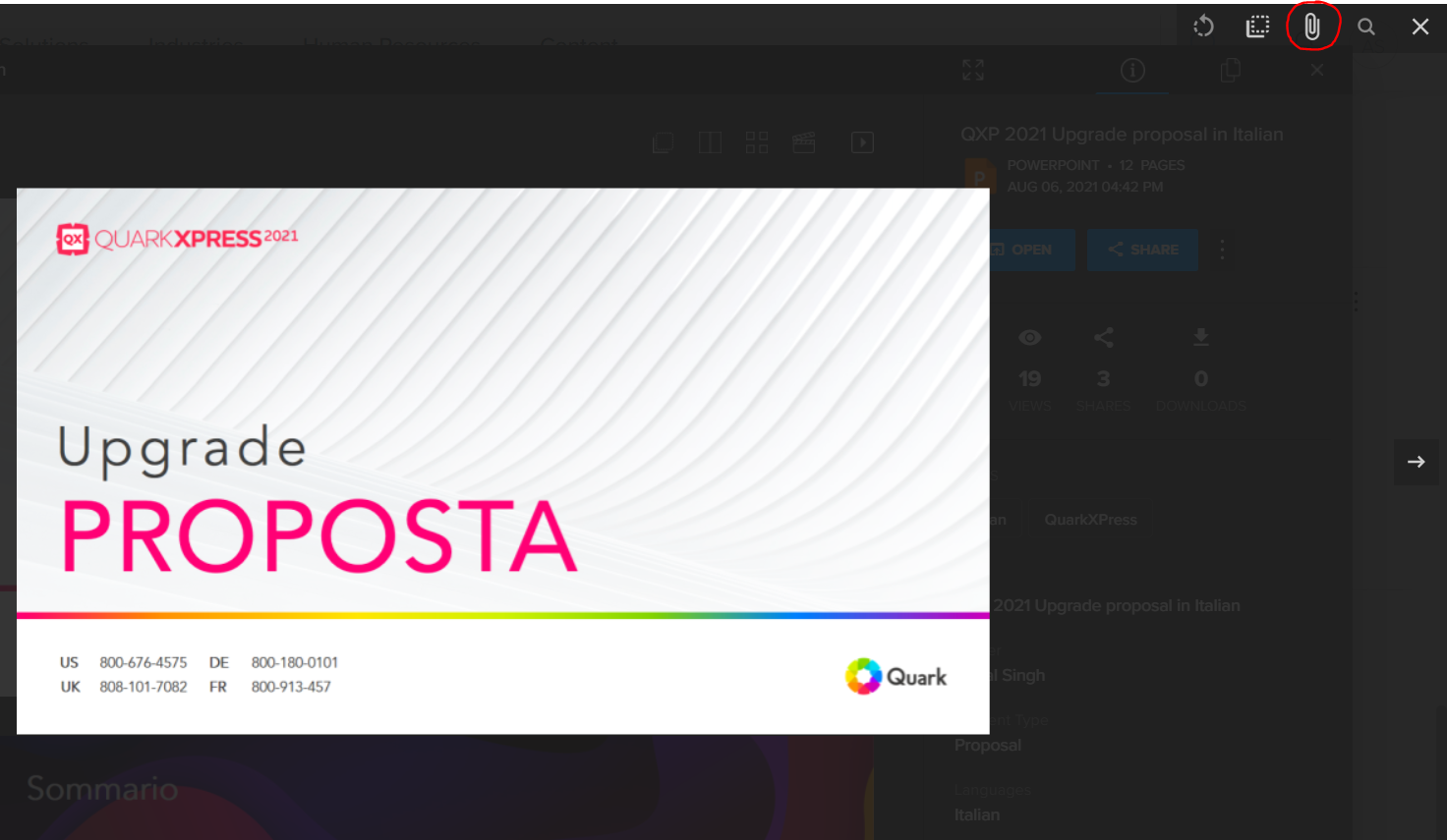
To add a document or a particular page to the clipboard.
- Expand the document tile.
- Click on the paperclip in the upper right-hand corner of the page.
- To add all pages to the clipboard, click over the document tile and click the paperclip icon.
- (Below mention snapshot shows the option to copy complete document to clipboard)
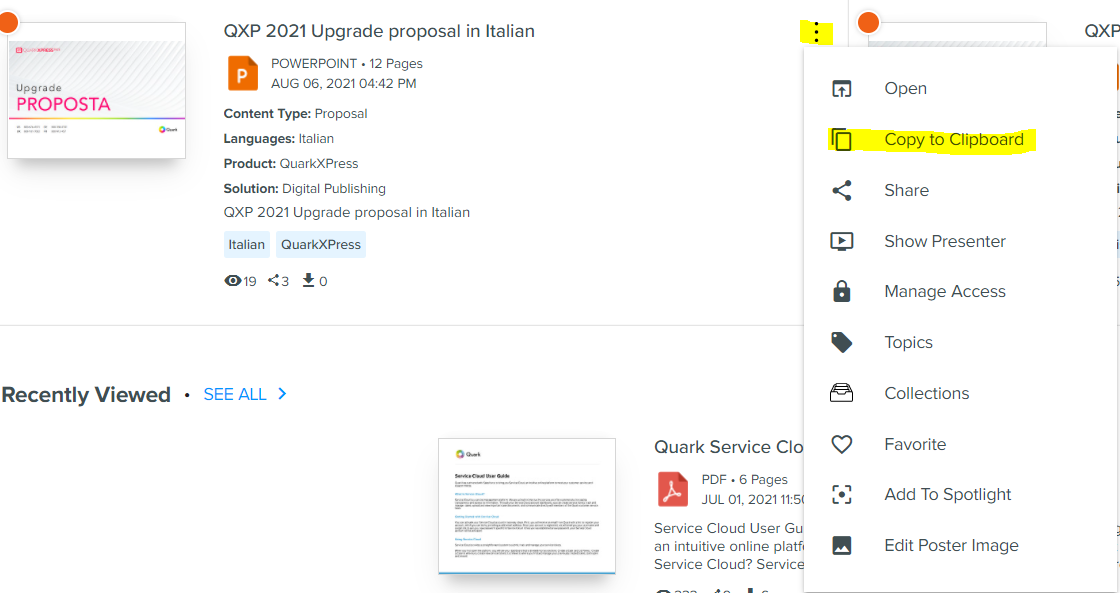
2. (As shown in fig click on the paperclip and this will add the content to the clipboard section)
To extract individual objects from a slide and add it to the Clipboard:
- Open a particular slide of a document by clicking the "Expand" button (arrows).
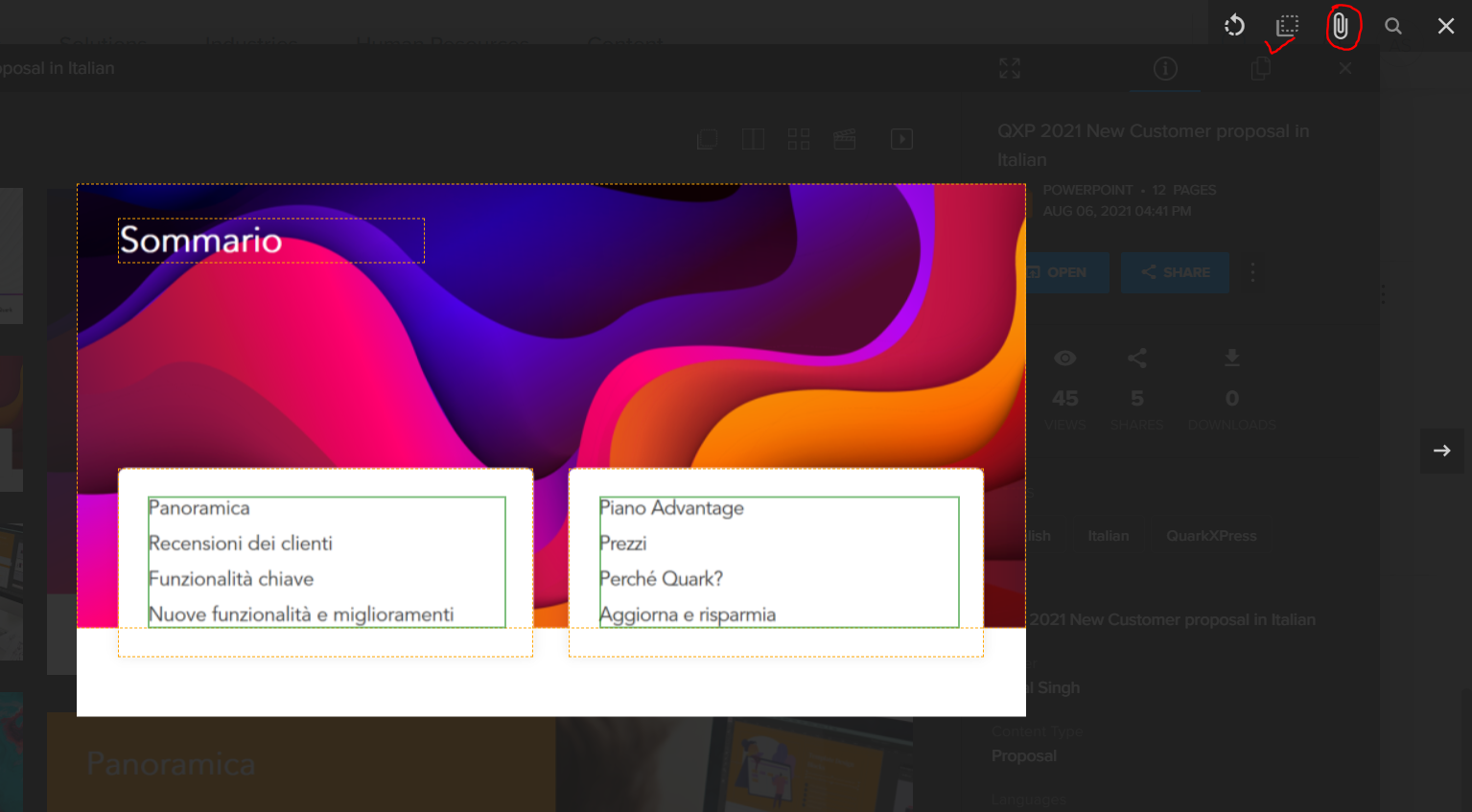
- Click on "Extract Objects" (Square icon) at the top of the slide (extractable objects will be framed in orange).
- Select the objects to be added to the Clipboard (selected objects will be highlighted in green).
- Click on the paperclip icon in the upper right-hand corner to add the objects to the Clipboard.
(File has been opened in below snapshots showing extracted object in the green frame and the paper clip icon for adding the content to the clipboard).
Priyanka Bhotika
Comments