Product: Quark Docurated (QD)
QD seamlessly integrates with your Box repository and mirrors any permissions settings you have made.
In order to enable Box sync in QD, follow the steps below:
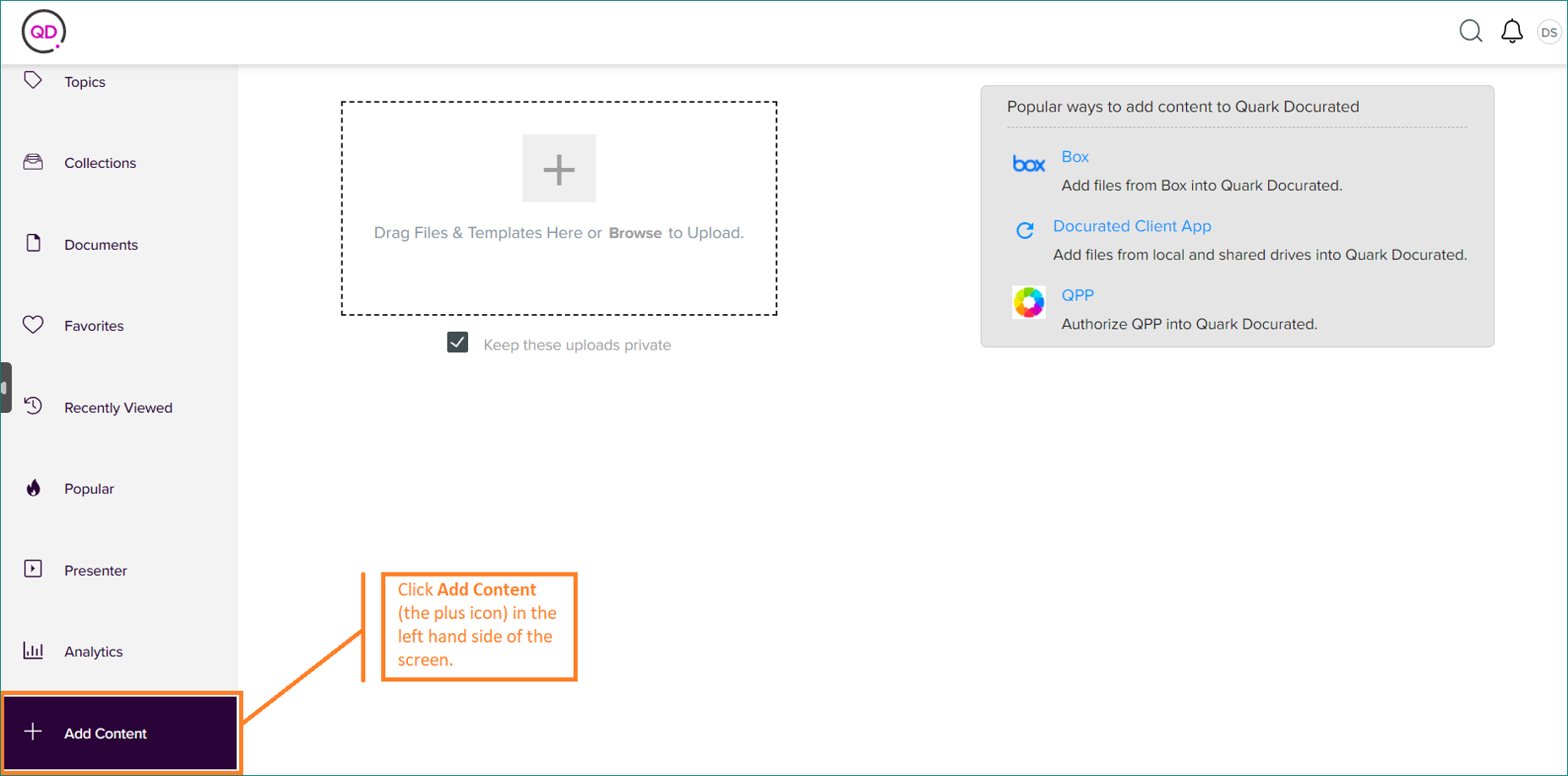
- Click on Add Content on the left side of the screen.
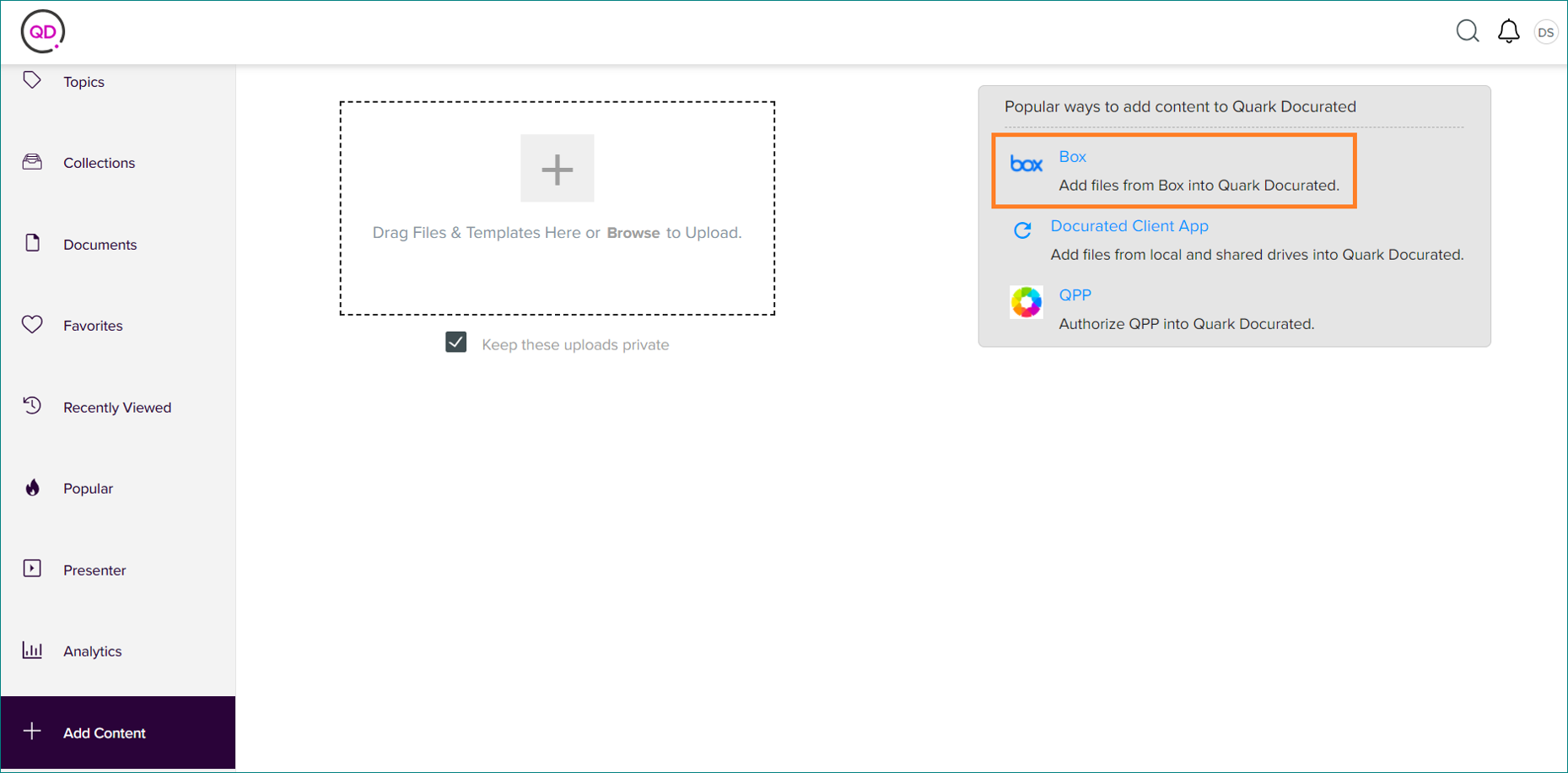
- Click on the Box link.
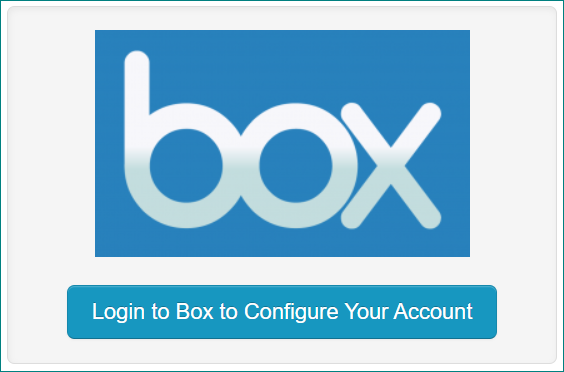
- Click Log In to Configure Your Account.
-
After entering your email address, click Authorize.
- Allow time for the initial scanning, syncing, and processing to begin. Folders will not be displayed on the configuration page until an initial scan has been completed.
-
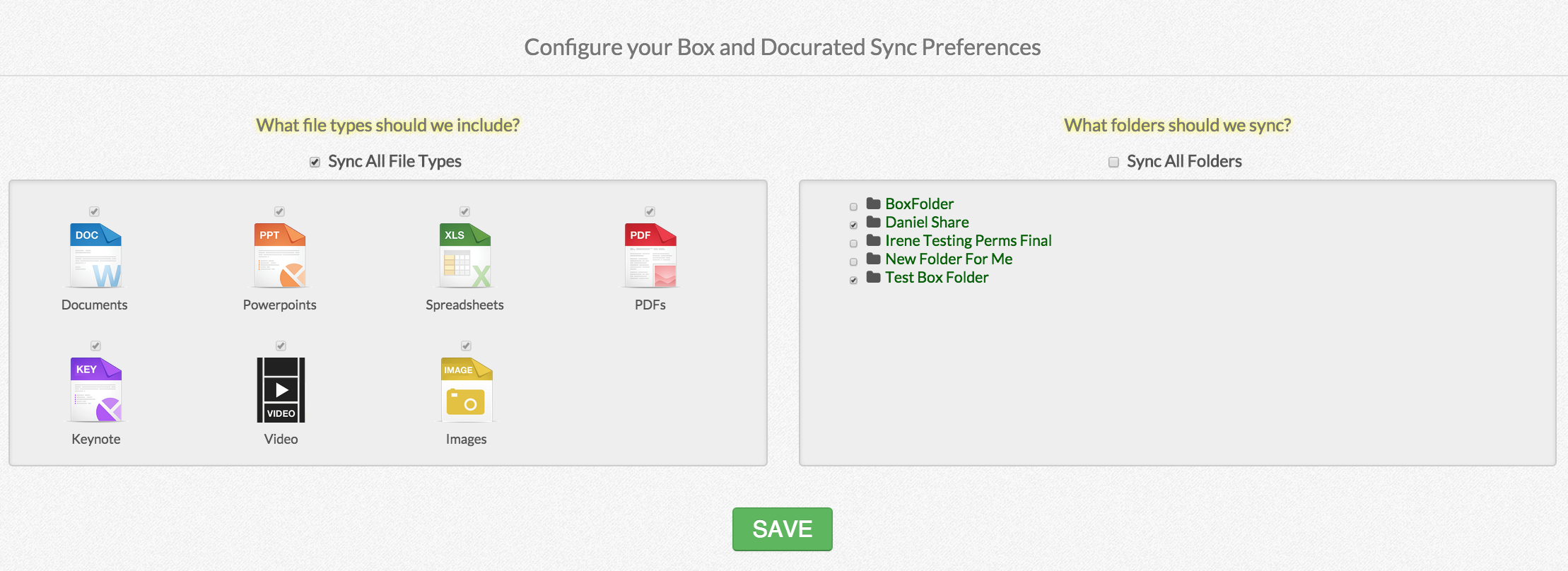
You will be prompted to select the types of files and specific folders you want to sync from Box.
- When you select a folder to sync, any existing subfolders will be displayed. Selecting a parent folder will auto-select all subfolders. You can uncheck individual subfolders if you do not wish them to be synced.
- When you select a folder to sync, any existing subfolders will be displayed. Selecting a parent folder will auto-select all subfolders. You can uncheck individual subfolders if you do not wish them to be synced.
- Click Save to begin syncing content.
Priyanka Bhotika
Comments