Product: Quark Docurated (QD)
Install QD Client App:
The most common way to get content into QD is via the QD Client App which syncs selected content from your Local/Shared drives and enables you to use the "Open" button in QD.
To install the QD Client App, follow the steps below:
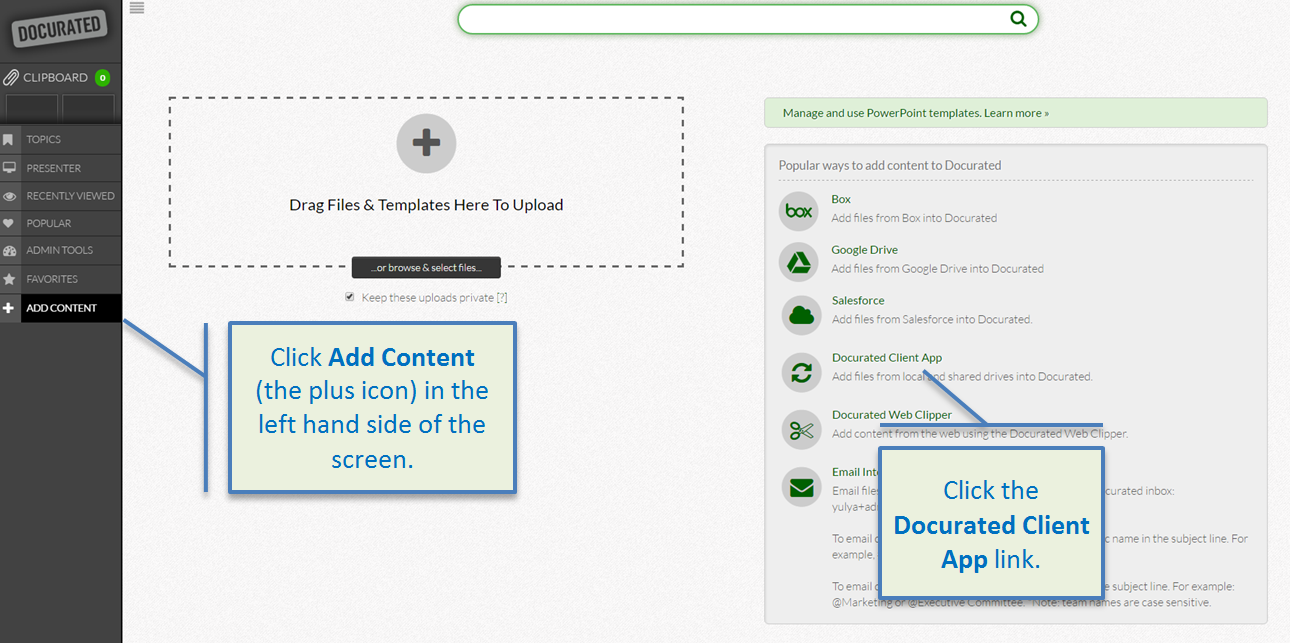
- Click Add Content (the plus icon) on the left side of the screen.
- Click on the QD Client App link, and the installer will download.
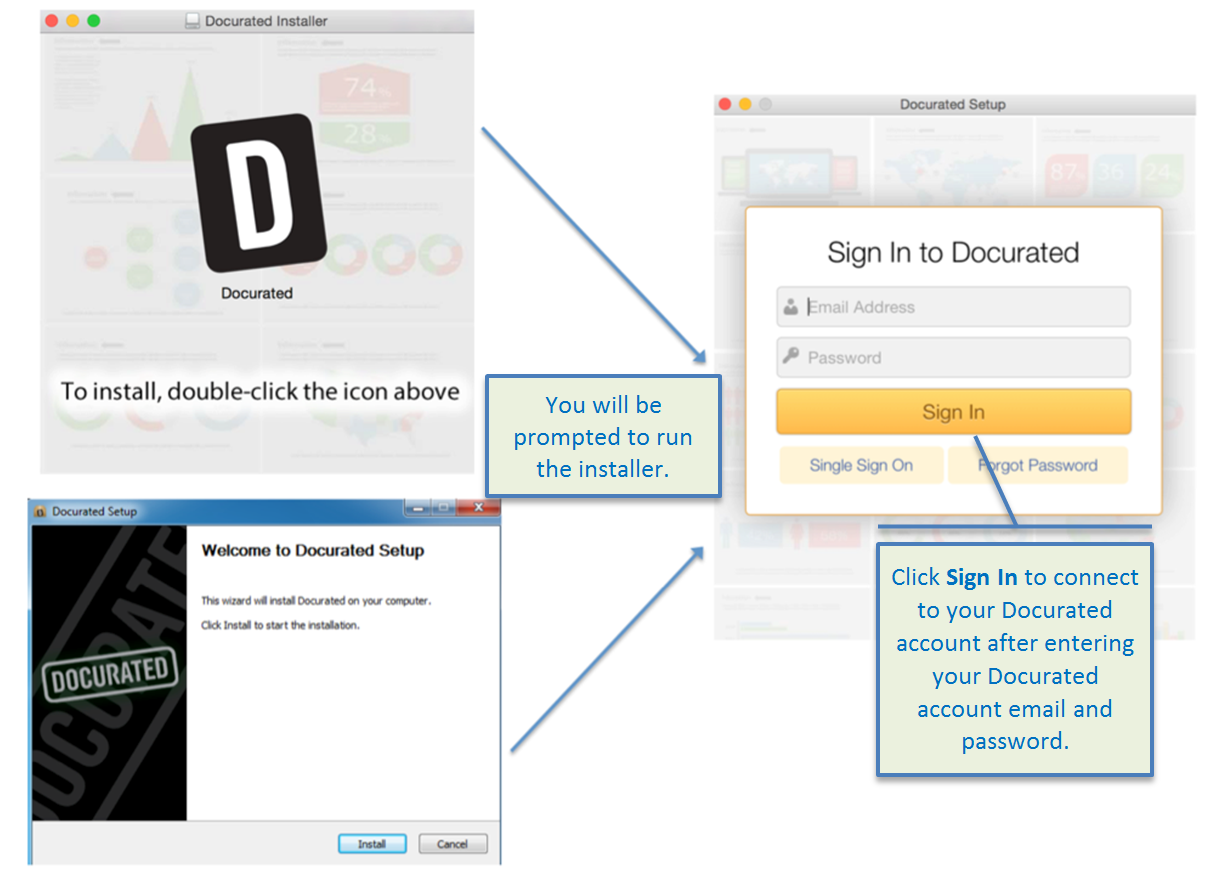
- You will be prompted to run the installer by double clicking the "D" icon.
-
A Sign In to QD window will open. You will be prompted to log into your QD account. Enter your email and password, then click Sign In.
-
* If your organization is using SSO, please follow these steps to activate the Client App:
- Click the Single Sign On button.
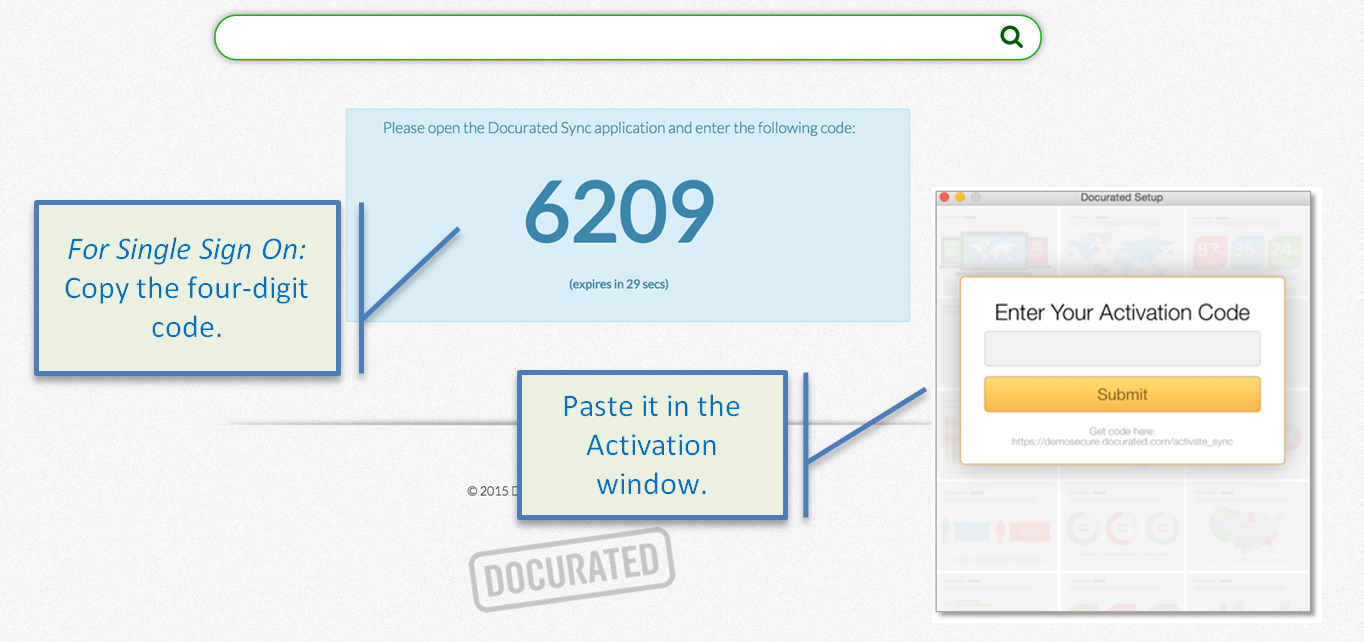
- A new browser window will open with an activation code. Copy and paste the four-digit code.
- Click Submit.
-
* If your organization is using SSO, please follow these steps to activate the Client App:
Configure QD Client App:
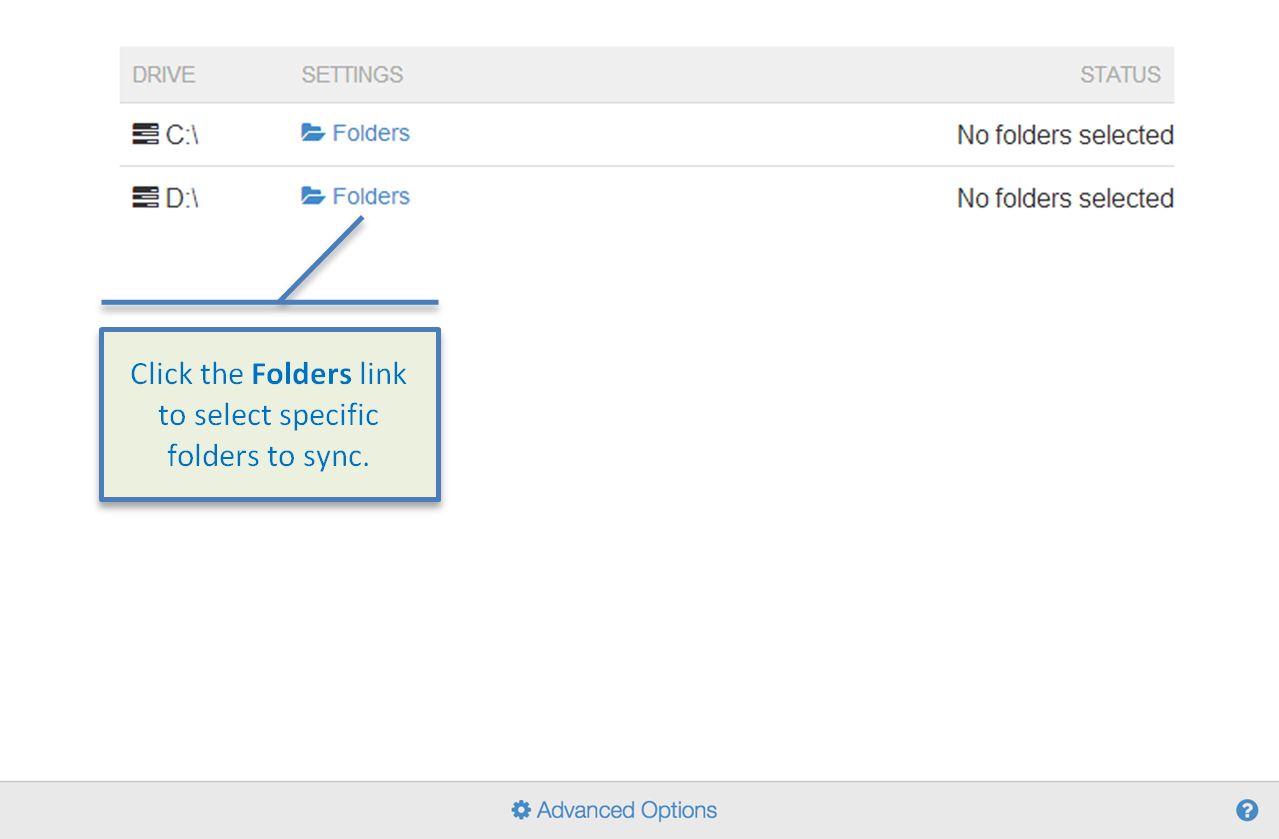
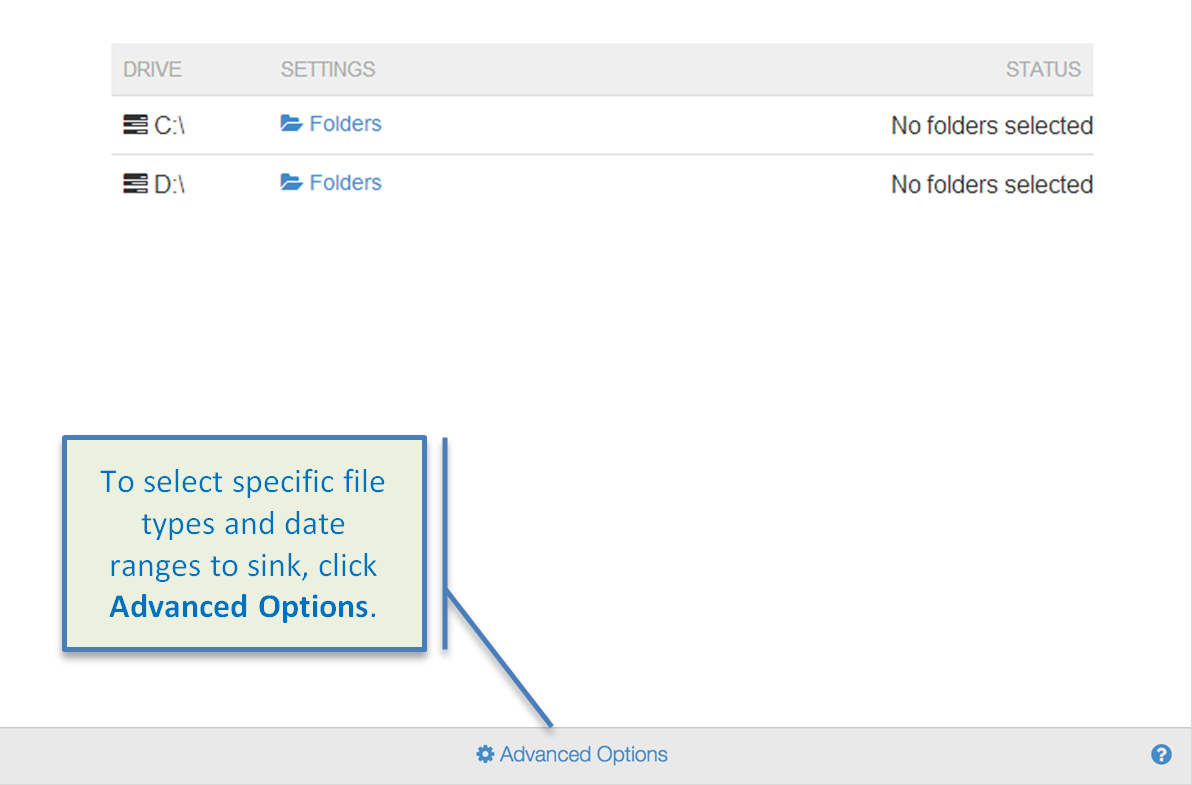
- In the Status window you will be prompted to select the specific folders you want to sync. To select individual folders, click the Folders link.
- You can select the specific file types to be synced by clicking the Advanced Settings link. In Advanced Settings you can also sync files that were last modified within a specified date range.
Priyanka Bhotika
Comments