Table of contents
Overview
Use this article when you need to create a new navigation menu, change which menu is the default, or add topics and categories to an existing navigation structure in Quark Docurated.
Manage Navigation controls the UI structure that users browse. It does not control the backend mapping that decides which source folders or integrations feed those topics. That distinction matters because support can change the navigation layout in the interface, but backend mapping still belongs to the development team.
Prerequisites
- A user account with navigation-admin access to Manage Navigation.
- The menu name, topic, category, or profile behavior you want to change.
- Profile information if the menu should apply only to a specific audience instead of the entire organization.
Solution
Follow the workflow below in order. Start by deciding whether you are creating a new menu or editing an existing one. Then decide whether the menu should apply to everyone or only to you while you test it.
Open Manage Navigation and choose the menu
- Open the user account menu in the top-right corner.
- Click Manage Navigation.
- If you need a brand-new menu, click + NEW MENU.
- If you created a new menu, enter the Menu name and click SAVE before you start adding items.
- If you need to change an existing menu, use the Edit icon for that menu.
Why this matters: create a new menu only when you need a separate navigation structure. If the customer already has the right menu and only needs new topics, editing the existing menu avoids unnecessary duplication. Saving the menu shell first gives you a place to attach top-level items, topics, and profile rules.
Configure menu defaults and profile targeting
- In the edit view, confirm the Menu name.
- Use Make default for organization when the navigation should become the standard menu for everyone.
- Use Make default for me (for testing menus without setting for entire organization) when you want to test safely without changing the organization-wide default.
- If the menu should override the organization default for a specific audience, select the relevant profile in the profile list.
- Click SAVE after you finish the default and profile settings.
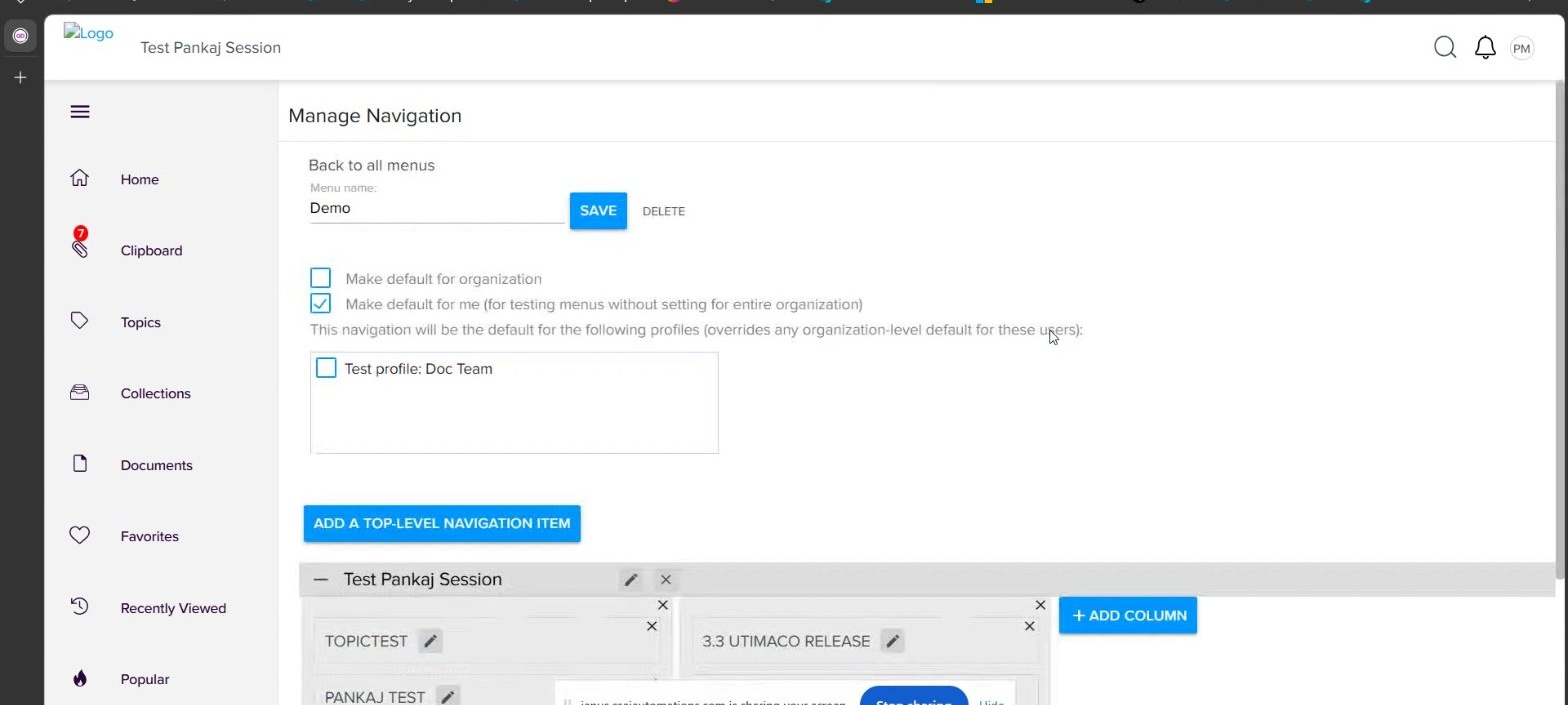
Why this works: the default settings decide whether the change is global or only for your test session. That prevents accidental organization-wide menu changes while you are still validating the layout.
Add a top-level navigation item
- Open the target menu in edit mode.
- Click ADD A TOP-LEVEL NAVIGATION ITEM.
- If prompted, name the new menu item.
- Use + ADD COLUMN if the layout needs another column under the selected top-level item.
Note: the navigation editor is structural. It controls how topics and categories are exposed in the menu, not which repository folders feed those items.
Attach a topic or category
- From the top-level item, choose whether you need ADD TOPIC or ADD CATEGORY.
- In FIND OR CREATE TOPIC, search for the existing topic first.
- If the correct topic appears, select it and click SUBMIT.
- If no topic exists yet, create it from the same dialog, then submit the change.
- Click SAVE on the menu after the topic or category has been attached.
- Confirm the save by looking for the Menu Updated confirmation.
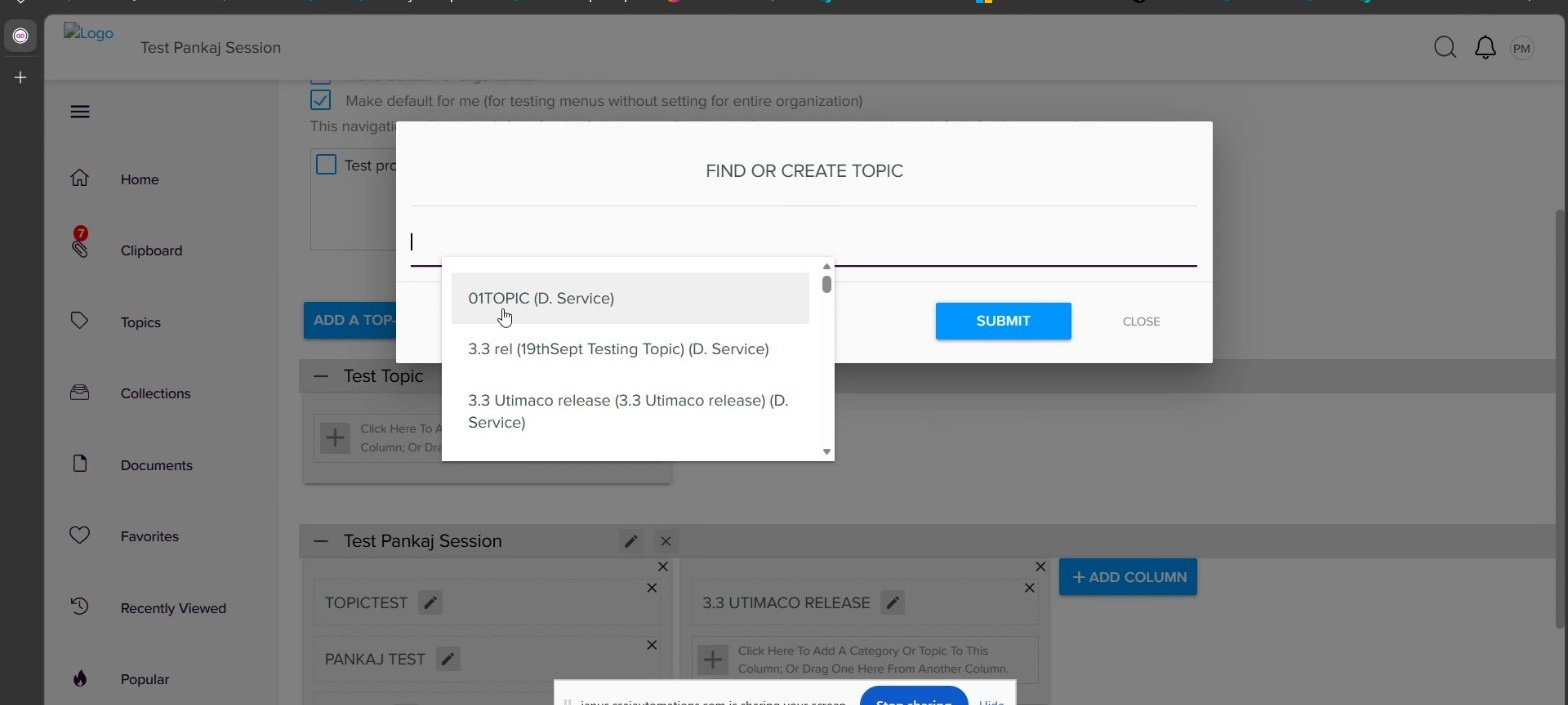
Why this works: attaching the topic in the navigation editor changes what users can browse from the menu. It does not change the underlying topic content by itself, so always separate UI structure work from content-source work.
Handle profile-based navigation behavior
If users should see different navigation by profile, confirm the profile behavior before you call the menu wrong.
- Profiles that need their own navigation must be tied to custom navigation or taxonomy behavior.
- If users are expected to switch between profile-driven views, enable the option that allows users to switch between groups.
- Users can then switch to a different profile-driven navigation from My Profile Settings.
Why this matters: a different menu is not always a defect. In many tenants, different teams are intentionally given different navigation structures.
Know what support can change and what must go to development
Support can:
- Create a new menu.
- Rename a menu.
- Set the menu as the organization default or your testing default.
- Assign the menu to specific profiles.
- Add topics or categories to the menu structure.
Support must hand off to development when the request is about:
- Mapping a source folder or repository to a navigation topic.
- Changing backend integration behavior.
- Any behind-the-scenes folder-to-topic mapping.
Final takeaway: use Manage Navigation to change what the user sees in the UI. If the customer is really asking why a source folder does not populate a topic automatically, stop editing the menu and route the case to the development team.
Priyanka Bhotika
Comments